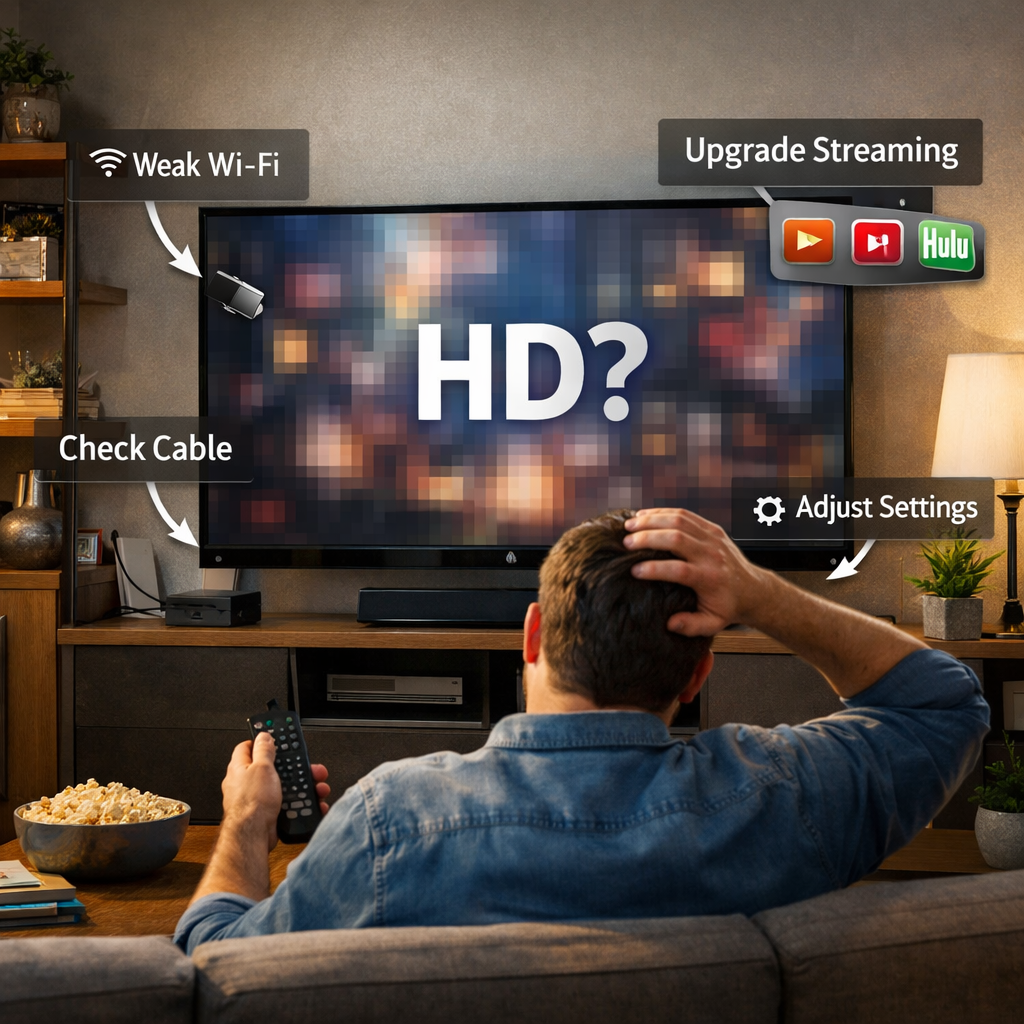
Just because you’re watching something on an HDTV, that doesn’t mean it’s really HD. Some high definition signals aren’t as good as others, and some movies you watch on an HDTV aren’t HD at all.

Congratulations, you’ve got a shiny new HD TV screen mounted on the wall in your media room and the goodies (cable or satellite connection, Netflix account, DVD player) to go with it.
So how come the picture on your HDTV isn’t as spectacular as you were expecting?
People throughout the New York area who’ve installed their own equipment often call DTV Installations asking for help because the picture on their new, modern TV isn’t as good as they think it should be. What we’ve found is that their problem usually isn’t with the television or monitor; it’s usually because their “HD” video source isn’t delivering a true HD signal.
A TV that says “high definition” on the box doesn’t automatically give you an HD picture – you have to give it the right help and use the right equipment to enjoy true high definition. Here’s what you need to know.
What Does HD TV Actually Mean?
HD, or High Definition, refers to a video resolution that’s sharper and more detailed than standard definition (SD). The two most common HD resolutions are 720p and 1080p (also called Full HD). The “p” stands for progressive scan, and the number refers to the vertical lines of pixels that make up the picture. The higher the number, the more detail your screen can display. You may also see “HD Ready,” which typically means a TV supports 720p but not the full 1080p resolution, so it’s worth checking the exact spec before assuming a TV delivers true high definition.
How to Check If Your TV Is HD
If you’re not sure whether your TV is HD, check the model number printed on the back panel or in your TV’s manual, then look it up online. You can also go into your TV’s Settings menu (usually under “About” or “Support”) to see the native resolution listed directly on screen.
The Easy Stuff
You may have a TV signal or movie that’s true HD, but not making it all the way to your TV. In that case, improving your picture quality could be as simple as making a phone call or changing a cable service.
1) You don’t automatically get a high-definition signal when you order cable or satellite service.
- Solution: Ask the service provider to provide an HD box and to activate HD signals for your home.
2) Some cable companies have separate channels for standard and high-definition signals. They may show CNN in standard definition on channel 26, for example, and CNN in high-def on channel 1026.
- Solution: Check your channel guide to make sure that you’re watching the HD channel.
3) You should be using an HDMI cable to connect your video source to your television (or, if absolutely necessary, component cables); a yellow composite cable won’t transmit high-definition signals.
- Solution: Buy HDMI cables. They are inexpensive, and you will need them for best performance.

Why Is My TV Showing No HD Signal at All?
If your screen shows no HD picture whatsoever, not just a soft or lower-quality image, the issue is usually a setting rather than the television itself. Here are the most common causes:
- Input source isn’t set correctly. Make sure your TV is set to the exact HDMI input your cable box, streaming device, or Blu-ray player is plugged into.
- Your cable or satellite box isn’t outputting HD. Even with an HD box, the output resolution setting inside the box’s own menu may be set to standard definition. Check the box’s settings, not just the TV’s.
- You’re on the wrong channel number. As mentioned above, many providers list the same channel twice, once in SD and once in HD, so double-check you’re tuned to the HD version.
- Picture mode or aspect ratio is misconfigured. Some TVs have a “stretch” or “zoom” mode that distorts or downgrades the image; switching back to the default or “Just Scan” mode often resolves this.
If you’ve checked all of the above and still aren’t getting an HD picture, the problem may be with your HDMI cable or port. Try a different cable or a different HDMI input to rule this out.
Is Your HD Really HD?
You’ve probably heard the term “1080p” – that’s the term used to describe the video resolution of “true” high definition signals. 720p is also referred to as high definition, but it doesn’t deliver the same rich, detailed picture because there are fewer lines of pixels in a 720p signal. (Higher resolutions like 4K are now available, but not yet common.) When you buy a modern HDTV (and not a cheap model) it will be 1080p.
A Blu-ray player delivers video at 1080p, so a movie on a Blu-ray disc should look perfect on your high-definition TV. After that, though, things get more complicated. An over-the-air HD television signal (captured by an antenna) will be 1080p and close to optimal. But the signals you receive by cable or satellite have to be converted by the TV before they can be displayed (they’re really 1080i and not 1080p, and we won’t bother with the full). The bottom line is that the quality of cable or satellite video won’t be quite as good as Blu-ray video, but will come pretty close.
Now we get to streaming services like Netflix and Amazon. Their signals are 720p high definition (which is easier and cheaper to transmit than 1080p), so they have to be “upconverted” by your TV to fill the 1080p screen with more pixels. The video will look good but will be softer, may have some video noise, and won’t have the same punch as true high-definition video. If you have a really big HDTV screen, that’s when you may notice that “it doesn’t look like the HD I expected.”
Finally, there’s the real problem: DVD players. DVDs transmit standard definition video at 480p, and have to be drastically upconverted to play on 1080 HD televisions. To illustrate how much of a difference that makes, a 1080p HDTV has to display about 500% more information than is contained in a 480p signal. Newer DVD players have upscaling functions which deliver a much better picture to high-definition televisions than older models – but to put it simply, DVDs ain’t HD, whether or not you watch them on an HDTV, and they’re not going to look great on a modern high-definition television.
How to Turn On HD on Your TV (Step by Step)
Getting HD to display properly usually takes just a few settings changes:
- Open your TV’s Settings or Menu. Use your remote to access the main settings screen.
- Go to Picture or Display settings. Look for a “Resolution” or “HDMI Format” option.
- Set the resolution to 1080p (or 4K, if supported). If your TV defaults to a lower resolution, manually change it here.
- Check your input source. Make sure the correct HDMI input is selected for the device you’re using.
- For smart TVs and streaming apps, open the app’s own settings (Netflix, Amazon Prime, etc.) and manually set the video quality to “High” or “HD,” since some apps default to a lower quality to save bandwidth.
A quick note on screen size: not every HDTV delivers the same resolution. Smaller and budget-friendly televisions, including many 32-inch models, are often “HD Ready” and only support 720p rather than true 1080p Full HD. Always check the exact resolution spec rather than assuming “HD” on the box means the same thing across every TV.
Frequently Asked Questions
Why is HD not working on my TV?
This is usually caused by an incorrect input source, a cable or satellite box that isn't outputting HD, or being tuned to the standard-definition version of a channel instead of its HD counterpart.
How do I know if my TV is HD?
Check the model number on the back of your TV or in the manual, or open your TV's Settings menu under "About" or "Support" to see its native resolution listed directly.
How do I turn on HD on my smart TV?
Go into your TV's Picture or Display settings, set the resolution to 1080p or higher, confirm the correct input source is selected, and check that streaming apps are set to their highest video quality individually.
Do I need an HD TV to watch HD channels?
Yes, you need both an HD-capable TV and an HD-enabled cable or satellite box, since a non-HD television cannot display a high-definition signal even if the source is broadcasting in HD.
If you have any other questions about how to get the best movie theater experience in your home, just give us a call. We will be happy to assist you.